
How to create a Page Type in code for EPiServer CMS 7
In EPiServer 7 CMS you can defined page types in code. In this blog post we cover how to create your first page type in this way.
Updated to EPiServer 7 CMS on 14.01.2013
This blog post was originally written for a preview version of EPiServer 7 CMS, but is now updated to the final release version.
A simple page type
A page type in EPiServer 7 CMS consists of two parts:
1. A page type class (.cs) that defines what properties the page should contain
2. A page template (.aspx) that renders the page and those properties.
Creating a page type class
Here is a simple page type class that defines our page type MyPage:
MyPage.cs
using System.ComponentModel.DataAnnotations;
using EPiServer.Core;
using EPiServer.DataAbstraction;
using EPiServer.DataAnnotations;
namespace EPiServer.Templates.Alloy.Models.Pages
{
[ContentType(DisplayName = "MyPage")]
public class MyPage : PageData
{
[Display(
Name = "My name",
Description = "",
GroupName = SystemTabNames.Content,
Order = 1)]
public virtual string MyName { get; set; }
}
}
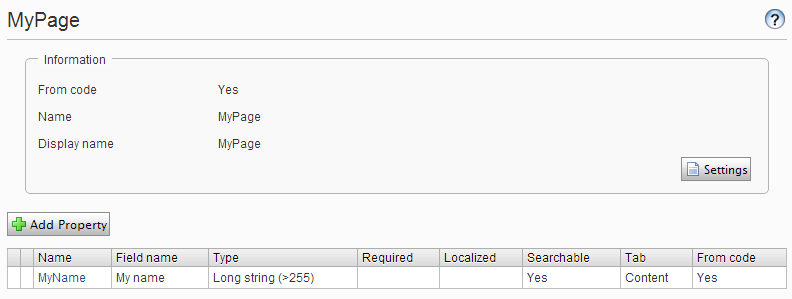
MyPage has a single string property called MyName.
Creating a page template
We now need a page template that can render pages of our page type MyPage.
MypageTemplate.aspx
<%@ Page Language="c#"
Inherits="EPiServer.Templates.Alloy.Views.Pages.MyPageTemplate"
CodeBehind="MyPageTemplate.aspx.cs" %>
<!DOCTYPE html PUBLIC "-//W3C//DTD XHTML 1.0 Transitional//EN"
"http://www.w3.org/TR/xhtml1/DTD/xhtml1-transitional.dtd">
<html xmlns="http://www.w3.org/1999/xhtml">
<head id="Head1" runat="server">
<title>My Page Template</title>
</head>
<body style="background-color: white;">
<form id="Form1" runat="server">
<div>
<h1>MyPage Template</h1>
My name is
<EPiServer:Property runat="server" PropertyName="MyName" />
</div>
</form>
</body>
</html>
In the code behind for the aspx file we set the connection between the page type class and the page template by setting TemplatePage<MyPage> (where MyPage is our page type class.)
MypageTemplate.aspx.cs
using EPiServer.Framework.DataAnnotations;
using EPiServer.Templates.Alloy.Models.Pages;
namespace EPiServer.Templates.Alloy.Views.Pages
{
[TemplateDescriptor(Path = "~/Views/Pages/MyPageTemplate.aspx")]
public partial class MyPageTemplate : EPiServer.TemplatePage<MyPage>
{
}
}
Using our new page type
After building the project and starting our EPiServer 7 site again we will see the new page type in admin mode:
The page type is also available in edit mode when we click create a new page:

(If you are using the Alloy demo and can’t see the MyPage as a page type when you create a new page, try creating a new page under the “Alloy Track” page instead as the start page has some restrictions set)
Lets create a new page of the type MyPage and enter “Alexander” into the MyName property:

After we publish the page the visitors will see this page:

That was how to create your first page type in EPiServer 7 from code. The next step is to create a simple block type.

Comments