
5 Secrets in EPiServer CMS 7 Edit Mode
In this blog post I will show you 5 secrets you (maybe) didn’t know about in EPiServer 7 CMS edit mode.
Secret #1: Get the old edit mode back!
Even with all the flashiness of the new on page edit UI and the availability of forms editing, some people still long back to the good old EPiServer edit mode.
Secret #1: EPiServer 7 CMS still has it!
All you need to do is to modify the normal edit path:
http://episerver7/{ui}/Cms/#context=epi.cms.contentdata:///4
to:
http://episerver7/{ui}/Cms/edit/
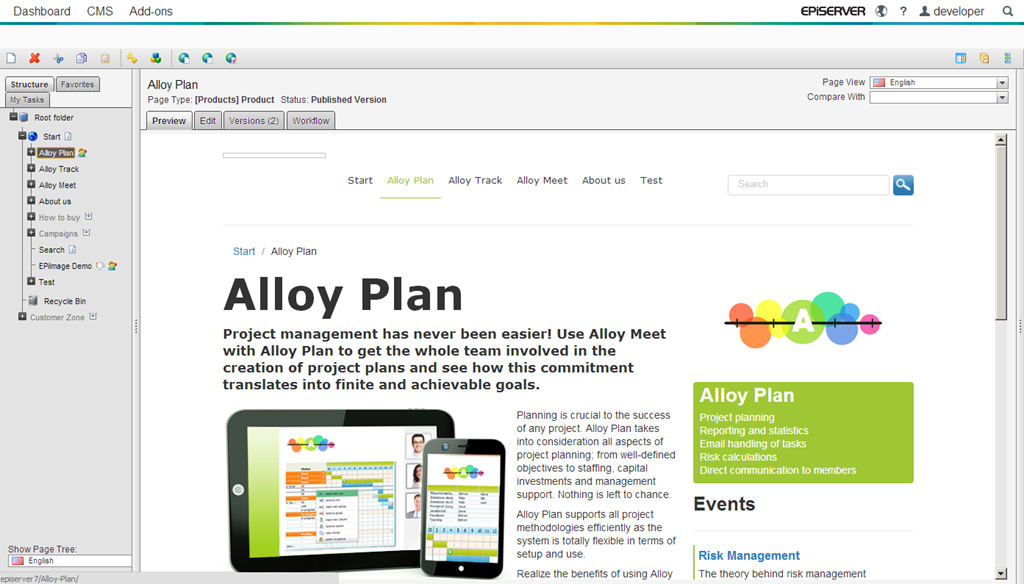
The old EPiServer edit mode still exists in EPiServer 7 CMS
It is even possible to set the old edit mode as the default.
Note that you can’t work with blocks and content areas in this mode:
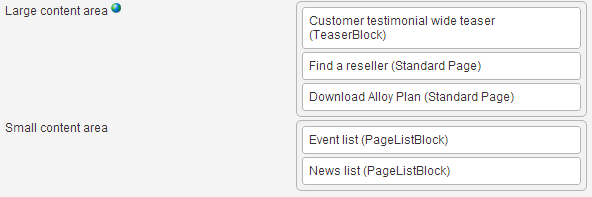
Note: The reason it still exists is for legacy support, so don’t expect it to survive the next big EPiServer update.
Secret #2: Show forms editing and a preview at the same time!
If you prefer working with pages in the “forms editing” mode, you loose the page preview you get in “on page edit” mode.
Secret #2: You can get a preview in “forms editing” mode by dragging the left side.
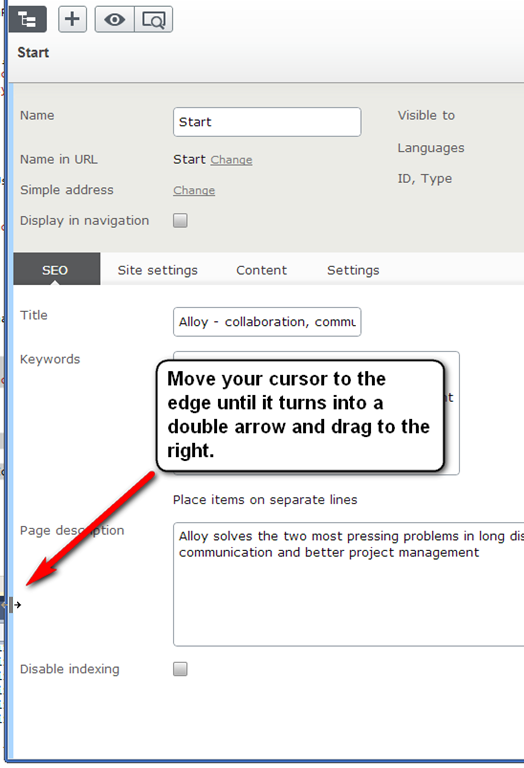
Move your cursor to the left edge of the window in “forms edit” mode until it turns into a double arrow. Drag the edge to the right to show the preview.
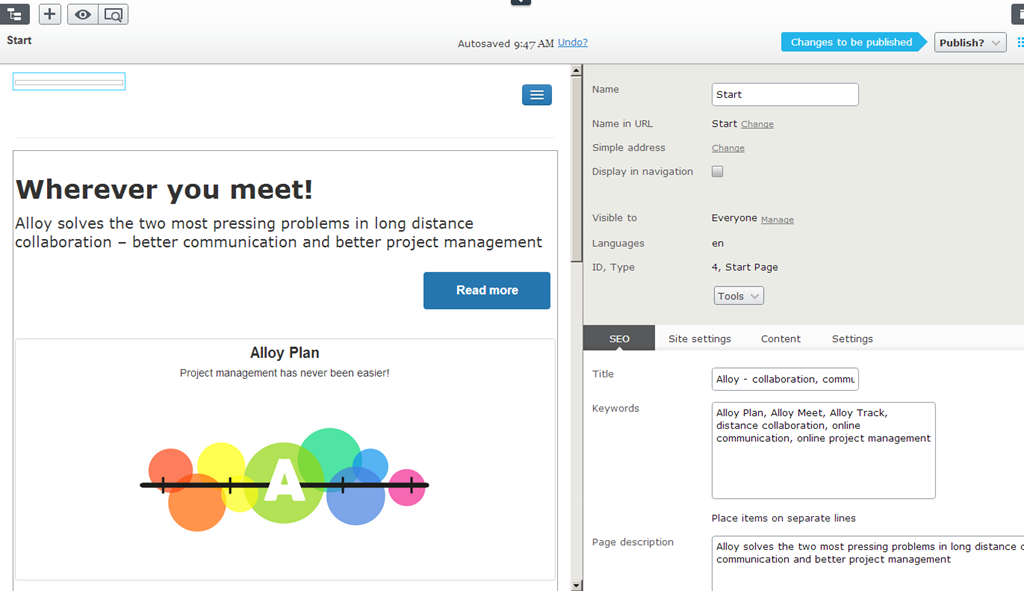
After you have dragged the edge to the right you see both the forms edit mode and a preview at the same time. Works best on a large screen.
Secret #3: Email a colleague a link to exactly what you see in edit mode!
You are editing the “Reporting Made Simple” page when you see that something looks funny when viewed in the mobile channel using the iPad horizontal resolution. You want to consult with a colleague and email instructions on how to get to the page, ask her to turn on the right channel and resolution for her to see what you see.
Secret #3: You can copy and past the URL into an email to your colleague for her to see exactly what you see! Including the exact page, the exact version you are working on (main draft), channel and resolution.
Here is an example URL:
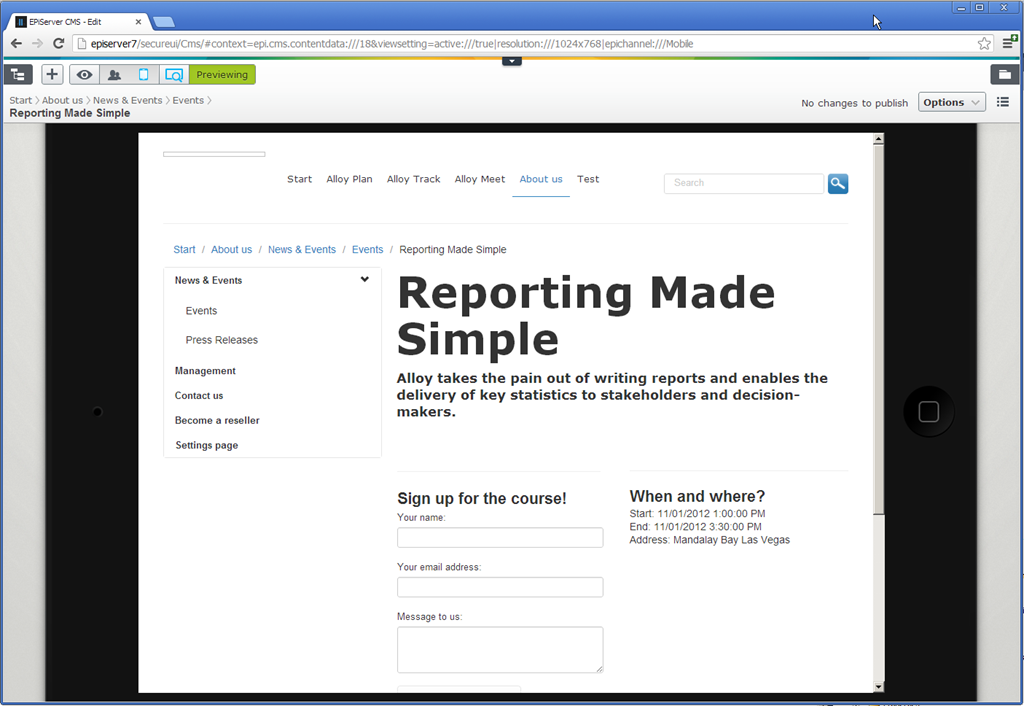
1. Copy the URL from the address bar
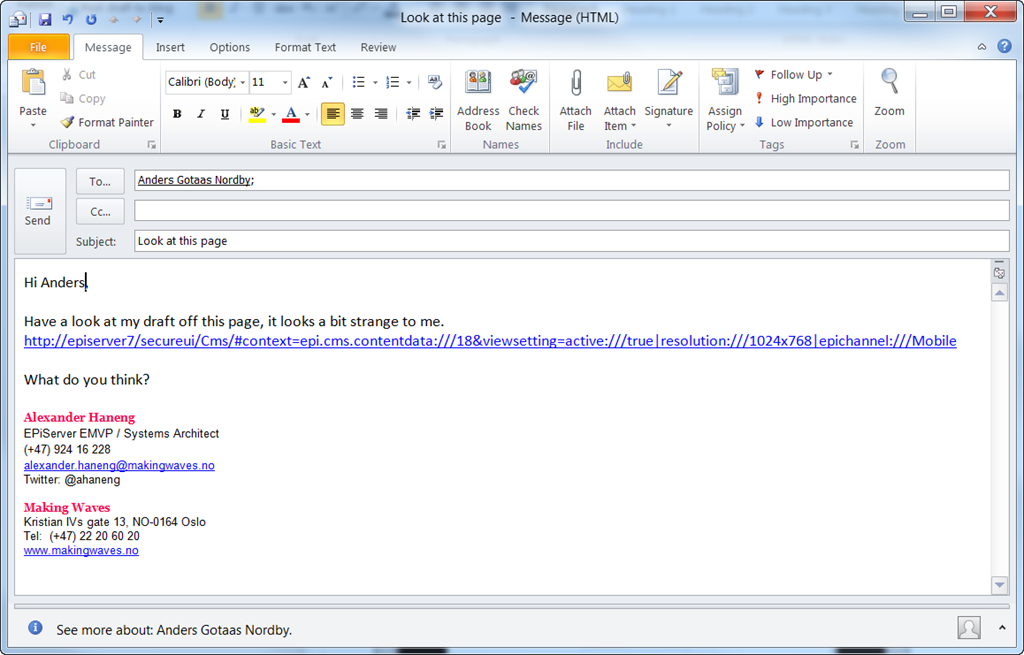
2. Email the URL to your colleague
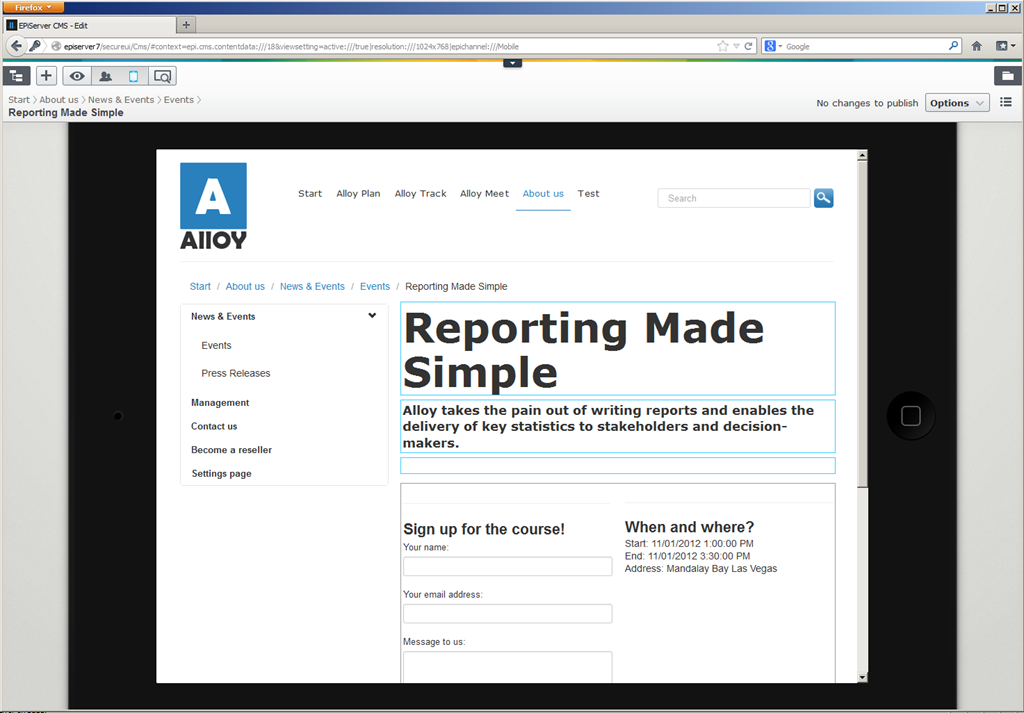
3. When your colleague clicks the link she will see the exact same page as you!
Note: This currently doesn’t work in Internet Explorer 9.
Secret #4: See a list of versions of a page (or a block)
To see the list of page or block versions you need to add a gadget to the “assets pane” (on the right).
Secret #4: Add the “Versions” gadget to the assets pane to view the page version list.
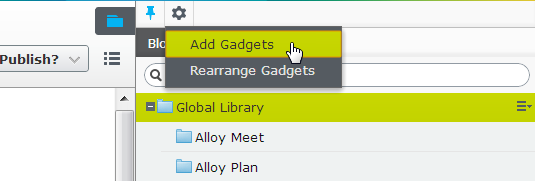
Step 1: Click the gear button on the top of the “assets pane” and select “Add Gadget”
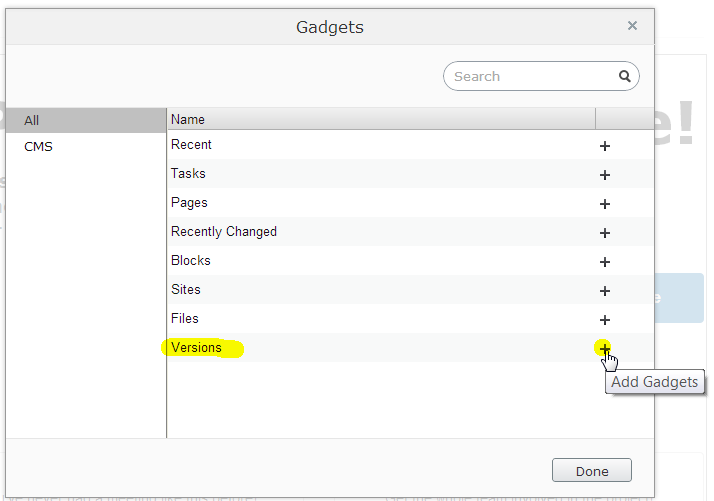
Step 2: Click the + next to the “Versions” gadget. Nothing happens, but don’t worry. The gadget has been added. Click “Done”.
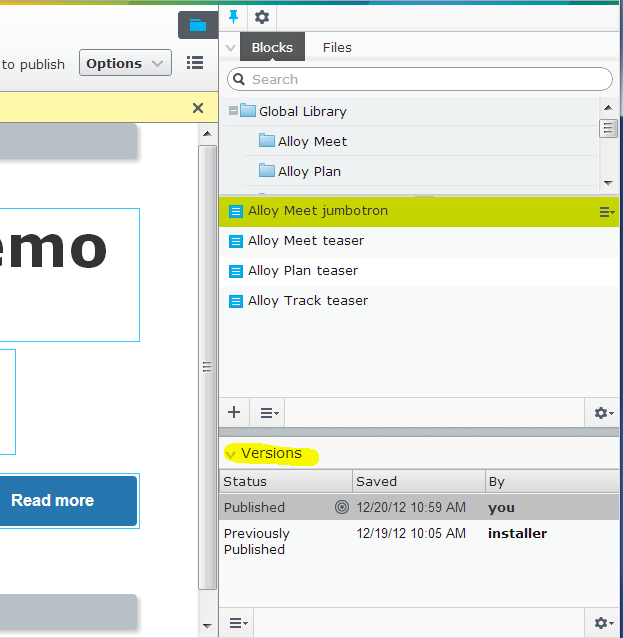
The gadget shows all the versions of the page or block you are working on.
Bonus tip: To remove a gadget you need to select “Rearrange Gadgets” and then click the X on the gadget.
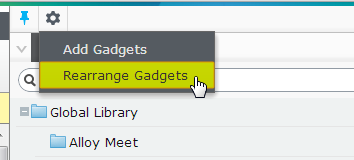
Select “Rearrange gadgets”
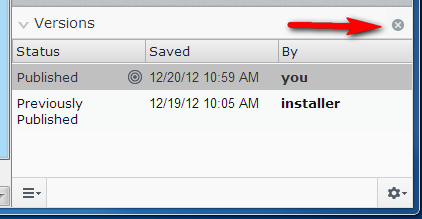
Click the X to remove the gadget.
Secret #5: There is a trash can for pages and blocks
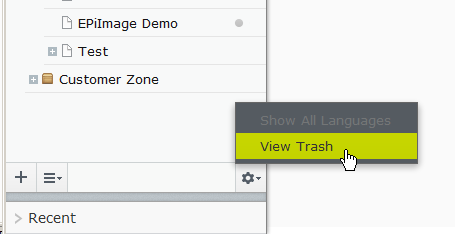
In earlier versions of EPiServer CMS the “recycle bin” was prominently shown in the page tree. In EPiServer 7 the button for the “trash” can is so hidden it (almost) qualifies as a secret.
Secret #5: Click the gear button at the bottom of the page tree and click “View Trash” to see the trash can for pages and blocks.
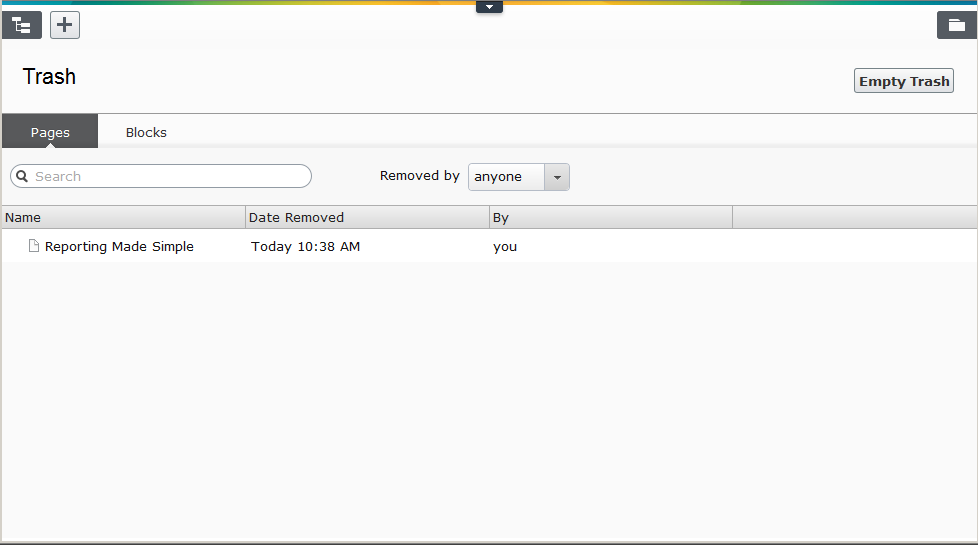
In the Trash you can see deleted pages and blocks.
Final thoughts
I hope showing you these “secrets” makes you editorial job a little easier in EPiServer 7 

Comments