
Cloud Clinic: An EPiServer CMS in Azure demo site
To test the capabilities of running EPiServer CMS in Azure I created a demo site called “Cloud Clinic”. It is a fictional American hospital that focuses more on making money than their patients, and as such their slogan is “Your pain, our gain” :-) In this blog post I will show you how I made it.
You can visit the Cloud Clinic demo site at http://cloudclinic.azurewebsites.net/ (please note that is my playground site, so it might go up and down). You can see from the domain name that it is an Azure web site, but you can of course swap that out for your own domain name.

Before we start we need a few things:
Azure account
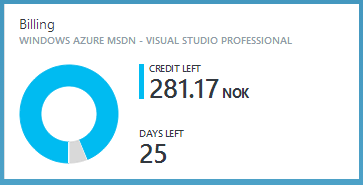
We need an account and log in details for the Azure Management Portal. Microsoft offers a free tier for Azure web sites, but you also need SQL Server, a Service Bus and BLOB storage. Through my employer I have a MSDN subscription with 300NOKs of free credits per month to use on Azure services, so check if you have one of those.
EPiServer Cloud License
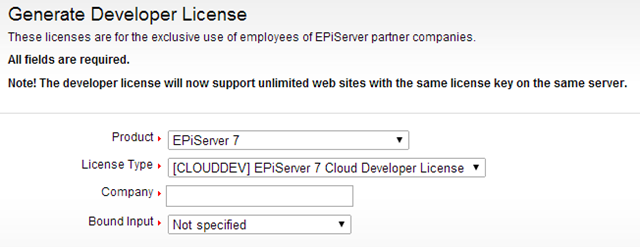
EPiServer currently offer a free “Cloud Developer License” for developers that supports 3 sites and 1000 servers. Get it at the EPiServer License Center, you don’t need to know the MAC or IP address, just select “Cloud” for the “Bound Input”.
Creating the site
The first thing I did was to create a blank EPiServer MVC project and follow the detailed instructions provided by EPiServer to make it run in Azure.
The steps includes logging in to the Azure Management Portal and create an Azure web site, Azure storage and Azure service bus.
Running the site locally and in Azure
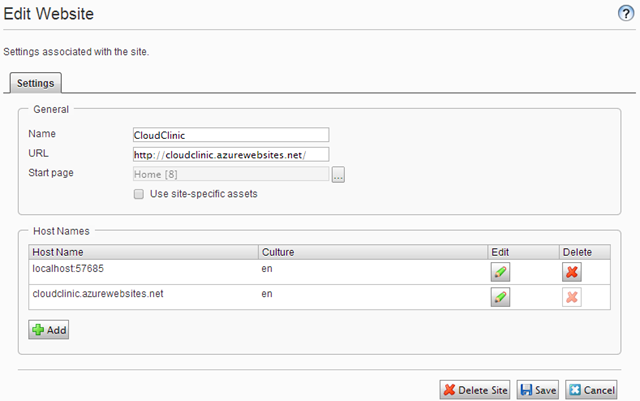
I wanted to be able to develop locally so I set up the site with two host names: one for localhost:xxxx and one for cloudclinic.azurewebsites.net. Note that when I run locally I use the same Azure SQL server database and Azure BLOB storage as when I run the site in Azure. To make this work you need to add a firewall exception for your machines public IP to allow it to access the Azure SQL Server externally, you can do this in the Azure Management Portal.
Activating the EPiServer license
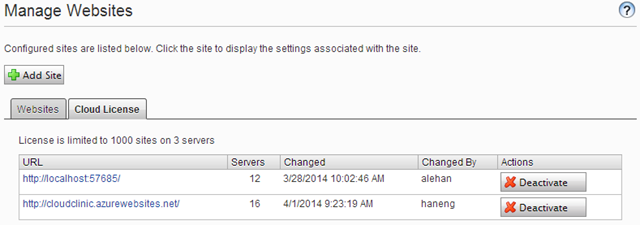
The cloud developer license is not limited to MAC or IP address, all you have to do is to click the “Activate” button.
Deploying code to Azure
In step 4 of EPiServers’ guide you downloaded the “Publishing Profile” from Azure that enables one click deploy from within Visual Studio. Simply right click your project in VS and select “Publish”. No more FTP or RDP into remote servers to deploy code! You can of course also set it up to use continuous deployment to Azure from your source control system.
Adding some content
An empty EPiServer site isn’t much fun so I went the quick and dirty route and bought a template from Template Monster. That gave me a responsive HTML web sites with Bootstrap, CSS, JS and images. It was fairly easy to copy & paste the HTML into my empty EPiServer MVC site and create a few page types and block types with properties to make everything editable.

Summary
So now you know how easy it is to get good ol’ EPiServer CMS running in the cloud. I hope to use the “Cloud Clinic” demo site as a basis for future blog posts, so stay tuned.

Comments