
Google map selector dojo property for EPiServer 7
I have with collaboration with a colleague of mine made a Google map selector. It’s plain but effective.
The basic concept is like this:
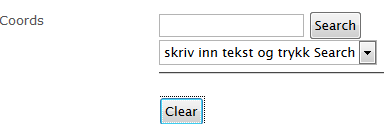 | A user can add a query to search for. |
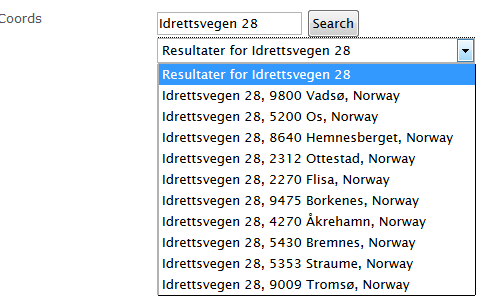 | After searching the dropdown got populated with possible hits |
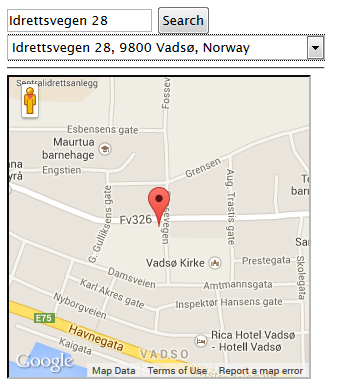 | After selecting one we display the result. |
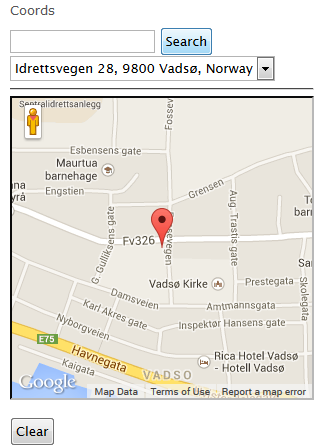 | After saving an reload of the page we show the ma |
To archive this we have as always tag over definition like this
- [ContentType(GUID = "64D8C8D0-87E8-4894-B8EA-B4654593741E", AvailableInEditMode = true, DisplayName = "Map")]
- [BlockImageUrl("Map.png")]
- public class MapBlock : BaseBlock
- {
- [UIHint("GoogleMapSelector")]
- public virtual string Coords { get; set; }
- }
as you can se we store the value of the search as text, so don’t need a own property. But we need a Descriptor to trigger our JavaScript. And that code look like this
- [EditorDescriptorRegistration(TargetType = typeof(string), UIHint = "GoogleMapSelector")]
- public class GoogleMapSelectorDescriptor : EditorDescriptor
- {
- public override void ModifyMetadata(Shell.ObjectEditing.ExtendedMetadata metadata, IEnumerable<Attribute> attributes)
- {
- ClientEditingClass = "itera.editors.GoogleMapSelector";
- base.ModifyMetadata(metadata, attributes);
- }
- }
In the actually script we have an iframe with the Google map JavaScript added.
- <iframe src=\"/modules/GoogleMap.aspx\" data-dojo-attach-point=\"iFrameBody\" data-dojo-attach-event='onload:_drawChart' style=\"width:300px;height:300px;\" ></iframe>
And on that page have JavaScript functions that we call from the dojo functions. There is also important to notice that one should draw the chart after all other stuff have been done, else we looses focus to the function and
- /*
- Dojo widget for editing a list of strings. Also see property type PropertyStringList in /Models/Properties.
- */
- define([
- "dojo/_base/array",
- "dojo/_base/connect",
- "dojo/_base/declare",
- "dojo/_base/lang",
- "dijit/_CssStateMixin",
- "dijit/_Widget",
- "dijit/_TemplatedMixin",
- "dijit/_WidgetsInTemplateMixin",
- "dijit/form/Textarea",
- "epi/epi",
- "epi/shell/widget/_ValueRequiredMixin"
- ],
- function (
- array,
- connect,
- declare,
- lang,
- _CssStateMixin,
- _Widget,
- _TemplatedMixin,
- _WidgetsInTemplateMixin,
- Textarea,
- epi,
- _ValueRequiredMixin
- ) {
- return declare("itera.editors.GoogleMapSelector", [_Widget, _TemplatedMixin, _WidgetsInTemplateMixin, _CssStateMixin, _ValueRequiredMixin], {
- templateString: "<div class=\"dijitInline\">"+
- " <div data-dojo-attach-point=\"stateNode, tooltipNode\">"+
- " <input type='text' data-dojo-attach-point=\"searchValue\" />" +
- " <input type='button' data-dojo-attach-event=\"onclick:_onClick\" value=\"Search\" /><br />"+
- " <select data-dojo-attach-point='searchResult' data-dojo-attach-event='onchange:_onChange' ><option value=''>skriv inn tekst og trykk Search</option></select><hr />" +
- " <iframe src=\"/modules/GoogleMap.aspx\" data-dojo-attach-point=\"iFrameBody\" data-dojo-attach-event='onload:_drawChart' style=\"width:300px;height:300px;\" ></iframe><br />" +
- " <input type='button' data-dojo-attach-event=\"onclick:_clearResult\" value=\"Clear\" />" +
- " <textarea data-dojo-attach-point=\"text\" data-dojo-attach-event=\"onchange:_onChange\" style=\"width:300px;height:40px;display:block;\" ></textarea>" +
- " </div>"+
- " <br />"+
- "</div>",
- baseClass: "epiStringList",
- intermediateChanges: false,
- value: null,
- multiple: true,
- onChange: function (value) {
- this.text.value = value;
- // Event
- },
- postCreate: function () {
- // call base implementation
- this.inherited(arguments);
- //this.set('value', this.value);
- // this.savedValue.value = this.value;
- // Init textarea and bind event
- //this.textArea.set("intermediateChanges", this.intermediateChanges);
- //this.connect(this.textArea, "onChange", this._onTextAreaChanged);
- },
- isValid: function () {
- return true;
- },
- _drawChart: function () {
- if (this.iFrameBody.contentWindow) {
- if (this.value) {
- $(this.iFrameBody).css("display", "block");
- this.iFrameBody.contentWindow.DrawChart(this.value, this.iFrameBody);
- } else {
- $(this.iFrameBody).css("display", "none");
- }
- }
- },
- _onClick: function (event) {
- var address = this.searchValue.value;
- var options = this.iFrameBody.contentWindow.DoSearch(address, this.searchResult);
- },
- _clearResult: function (event) {
- this._set('value', "");
- this.onChange(this.value);
- this._drawChart();
- this.searchResult.innerHTML = "<option value=''>skriv inn tekst og trykk Search</option>";
- this.searchValue.value = "";
- },
- _onChange: function (event) {
- // summary:
- // Handles the textbox change event and populates this to the onChange method.
- // tags:
- // private
- //alert("yo");
- this._set('value', event.target.value);
- this.onChange(this.value);
- this._drawChart();
- },
- // Setter for value property
- _setValueAttr: function (value) {
- this._setValue(value, true);
- },
- //_setReadOnlyAttr: function (value) {
- // this._set("readOnly", value);
- // this.savedValue.set("readOnly", value);
- //},
- // Setter for intermediateChanges
- _setIntermediateChangesAttr: function (value) {
- //this.textArea.set("intermediateChanges", value);
- //this._set("intermediateChanges", value);
- },
- // Event handler for textarea
- _onTextAreaChanged: function (value) {
- this._setValue(value, false);
- },
- _setValue: function (value, updateTextarea) {
- // Assume value is an array
- // this.savedValue.set("value", value);
- // Assume value is an array
- var list = value;
- if (typeof value === "string") {
- // Split list
- list = this._stringToList(value);
- } else if (!value) {
- // use empty array for empty value
- list = [];
- }
- if (list.length == 1 && list[0] == "")
- list = [];
- var txt = list.join("");
- this._set("value", txt);
- if (updateTextarea && list.length>0) {
- this.text.value = txt;
- // this.text.set("value", list.join("\n"));
- var elements = txt.split('$');
- this.searchResult.innerHTML = "<option value=\"" + txt + "\">" + elements[1] + "</option>";
- this._drawChart(txt);
- }
- }
- });
- });
The /Modules/GoogleMap.aspx looks like this
- <!DOCTYPE html>
- <html xmlns="http://www.w3.org/1999/xhtml">
- <head runat="server">
- <script src="https://maps.googleapis.com/maps/api/js?v=3.exp&sensor=false"></script>
- <style>
- html, body, #map-canvas { height: 300px; margin: 0px; padding: 0px; width: 300px; }
- </style>
- <script>
- var map;
- var currentMarker;
- function DoSearch(query, obj) {
- geocoder.geocode({ 'address': query }, function (results, status) {
- var html = "";
- html += "<option value=''>Resultater for " + query + "</option>";
- if (status == google.maps.GeocoderStatus.OK) {
- for (var i = 0; i < results.length; i++) {
- html += "<option value=\"" + results[i].geometry.location + "$" + results[i].formatted_address + "\">" + results[i].formatted_address + "</option>";
- }
- }
- obj.innerHTML = html;
- });
- }
- function DrawChart(data, obj) {
- var elements = data.toString().split('$');
- var matches = elements[0].toString().substr(1, elements[0].length - 2);
- var location = matches.toString().split(',');
- var myLatlng = new google.maps.LatLng(parseFloat(location[0]), parseFloat(location[1]));
- var mapOptions = {
- draggable: false,
- zoomControl: false,
- scrollwheel: false,
- disableDoubleClickZoom: true,
- mapTypeControl: false,
- zoom: 15,
- center: myLatlng,
- mapTypeId: google.maps.MapTypeId.ROADMAP
- }
- map = new google.maps.Map(document.getElementById("map-canvas"), mapOptions);
- // To add the marker to the map, use the 'map' property
- currentMarker = new google.maps.Marker({
- position: myLatlng,
- map: map,
- title: elements[1]
- });
- }
- function initialize() {
- geocoder = new google.maps.Geocoder();
- }
- </script>
- </head>
- <body onload="initialize()">
- <form id="form1" runat="server">
- <div>
- <div id="map-canvas"></div>
- </div>
- </form>
- </body>
- </html>
So after all this is done, we have a block with a Google map selector. Then the last piece is to show the value.
There there are a little trick. To ensure that the map is shown the JavaScript http://maps.googleapis.com/maps/api/js?v=3.exp&sensor=false needs to be loaded. But you don't want to load that JavaScript on all page requests.
We therefore engineered a construct that we added to the footer of the page
- <script>
- function AddIfGoogleMap(src) {
- if ($(document.body).find('div.googleMap').length>0)
- document.write('<' + 'script src="' + src + '"' +
- ' type="text/javascript"><' + '/script>');
- }
- AddIfGoogleMap("http://maps.googleapis.com/maps/api/js?v=3.exp&sensor=false");
- </script>
This finds if there is a div with class Google Map the JavaScript will be loaded
Then we after this script add this script
- function GetScale(scale, width, height) {
- if (scale > 0) {
- if (width)
- return Math.ceil(width / scale);
- if (height)
- return Math.ceil(height * scale);
- }
- return 0;
- }
- function GetScaleInner(obj, key) {
- var h = obj.attr("data-image-" + key + "-height");
- var w = obj.attr("data-image-" + key + "-width");
- if (h != "" && w != "") {
- return w / h;
- }
- return 0;
- }
- function ResizeGoogleMap100Procent(obj) {
- var scale = GetScaleInner(obj, "scale");
- obj.css("width", "100%");
- obj.css("height", "");
- var width = obj.width();
- var height = GetScale(scale, width);
- obj.css("height", height);
- obj.css("width", width);
- var data = obj.attr("data-google-map-cords");
- var elements = data.toString().split('$');
- var matches = elements[0].toString().substr(1, elements[0].length - 2);
- var location = matches.toString().split(',');
- var myLatlng = new google.maps.LatLng(parseFloat(location[0]), parseFloat(location[1]));
- var mapOptions = {
- draggable: false,
- zoomControl: false,
- scrollwheel: false,
- disableDoubleClickZoom: true,
- mapTypeControl:false,
- zoom: 15,
- center: myLatlng,
- mapTypeId: google.maps.MapTypeId.ROADMAP
- }
- map = new google.maps.Map(obj[0], mapOptions);
- // To add the marker to the map, use the 'map' property
- currentMarker = new google.maps.Marker({
- position: myLatlng,
- map: map,
- title: elements[1]
- });
- }
- $(document).ready(function () {
- $(document.body).find('div.googleMap').each(function (i) {
- ResizeGoogleMap100Procent($(this));
- });
- });
With this in place we can add this html code anywhere
- <div class="googleMap" data-image-scale-width="16" data-image-scale-height="9" data-epi-use-mvc='True' data-google-map-cords="@Model.Coords" data-epi-property-name='Coords'></div>
And it will show a map with 100% width and 16/9 scale

Comments