

Fix failing Remove Unrelated Content Assets Optimizely scheduled job
Our Remove Unrelated Content Assets scheudled job started to fail with message "The DELETE statement conflicted with the REFERENCE constraint "FK_tblContentProperty_tblContent2". The conflict occurred in database "epicms", table "dbo.tblContentProperty", column 'ContentLink'.". All we knew some heavy content deletion and imports were done, but that is normal work supported by CMS (maybe not done in such magnitude often, but anyways). @Optimizely hint, that error message in scheduled job views is pretty useless - we have no real data like the offending content id to easily try to understand what is wrong.
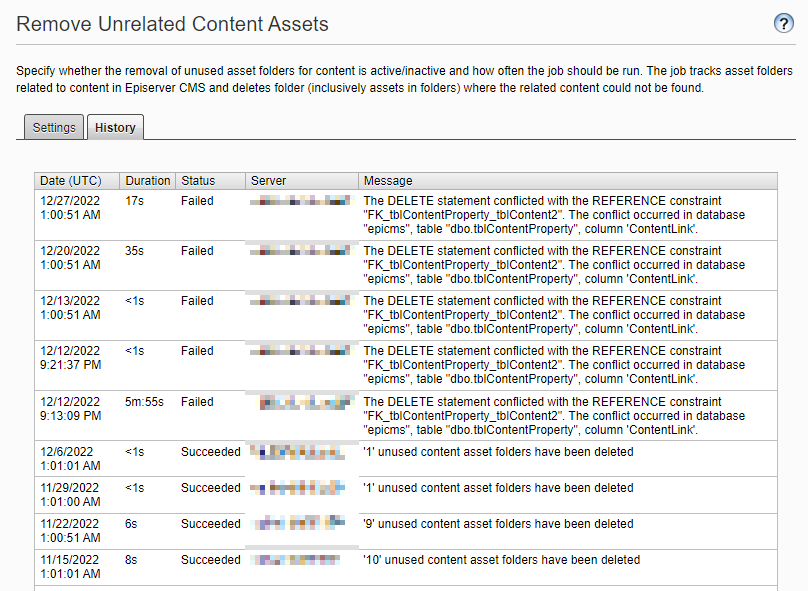
So at this stage we only know that something is failing in database because of a constraint but we have no clue what content is causing this.
What content is causing the issue
So next step is, how do we figure out the content causing this - I did remember from past that the EPiServer.DataAccess.Internal.ContentSaveDB does actually log content ids but on DEBUG level.
So what I did was get the DXP database exported and restored to local environment and then changed the log4net logging level to log everything.
So in your log4net (usually in Optimizely CMS 11 projects named by default EPiServerLog.config) you need to change under root node the level node value to All or Debug, and then also in the appender configuration comment out the threshold node or change its value to Debug for example.
Now when executing the job we get a lot more logging and should look in the log file just before the exception is logged.
DEBUG EPiServer.DataAccess.Internal.ContentSaveDB: Deleting content 65015
ERROR EPiServer.DataAbstraction.ScheduledJob: Job EPiServer.Util.CleanUnusedAssetsFoldersJob failed for the job 'Remove Unrelated Content Assets' with jobId ='e652f3bd-f550-40e8-8743-2c39cda651dc'
System.Data.SqlClient.SqlException (0x80131904): The DELETE statement conflicted with the REFERENCE constraint "FK_tblContentProperty_tblContent2". The conflict occurred in database "preprod-cms", table "dbo.tblContentProperty", column 'ContentLink'.
I've cleaned a bit of trace messages away from the above log snippet, but you get the point from it.
Now we can see that the system is about to delete content with id 65015 and that is the content id that causes the exception.
Manage content
Now that we know the content id we can navigate to CMS edit mode and modify the url to contain the offending content id like so #context=epi.cms.contentdata:///65015&viewsetting=viewlanguage:///en and hit enter to navigate to that content. In our case this was a content assets folder and it contained some images, but there is no way to delete this content from edit mode.
But what about the "Manage content" tool in admin view under tools? If you would just simply navigate to the "Manage content" tool you would see site(s) resources in hierarchial view and thats it, but there is an old trick. Right click "Manage Content" under tools and select to open link in new tab, switch to the new tab and look at the url, this should give you the hint that the page accepts content id as url paramter. Edit the url and enter the offending content id to the url, in our case ManageContent.aspx?id=65015 and hit enter.
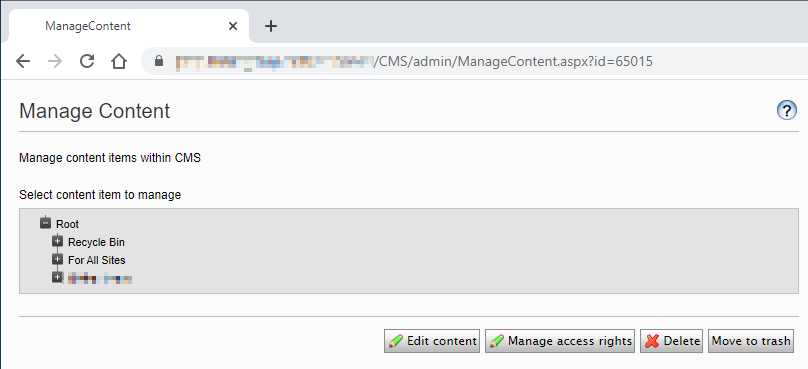
It looks like nothing changed BUT you are now actually editting that content with content id 65015. So our goal was to get rid of this content, so click "Move to trash" button (not the Delete, there is a reason for it).
The page will reload and the id in url changes to 4 (content asset folder root), the id might be different in your case if the type of the content was something else.
Next switch to edit view and go to trash (View Trash). Now you should see the content in trash.
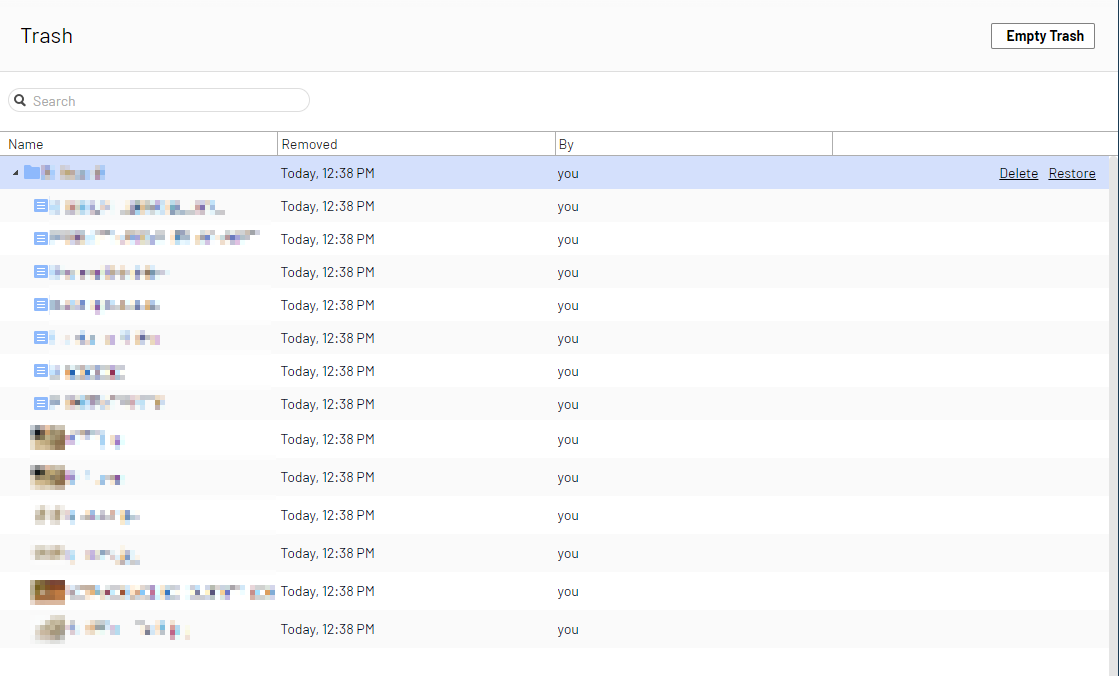
Before I moved the content to Trash, I had emptied the trash, so all content is now something that can be emptied from trash. In our case the content was the content folder so all content inside it can be seen here too. You can hover your mouse cursor over the folder and you can see it has the content id we just moved (like double checking). Next step is to delete the content from trash, you can use the "Empty Trash" button or one by one delete item(s).
Execute Remove Unrelated Content Assets
Final step is to check did we correct the issue, so navigate to admin view and then manually start the Remove Unrelated Content Assets scheduled job.
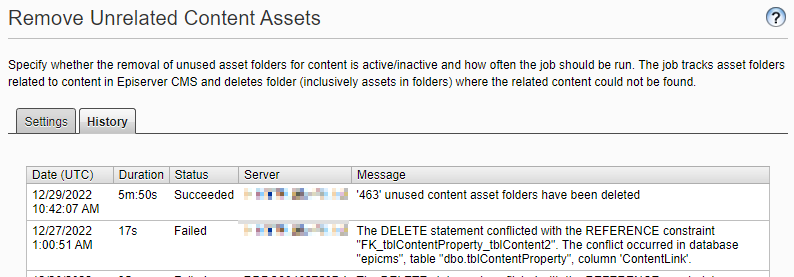
Success!
Outro
In the Content Management view I instructed to press the "Move to trash" button instead of "Delete" as there was a reason for it. I think I initially tried that approach and it didn't work but I'm writing this blog post a month after I wrote the steps down, so I really don't remember anymore for sure and I don't have time to setup this again :D But if recall correctly it has to with how the job is implemented, it reads "events" from "Change log" and if the delete button was used in the Manage Content some info is still missing and it will not work, so it really needs to be done -> move to trash and then delete.

Comments