

Download Statistics
Most of us probably deploy some kind of analytics to track page views, for example Google Analytics. If you use an analytics tool, there is a good chance that you’d like to do some kind of click-tracking to catch downloads as well (e.g. ZIP or PDF files). By default, most analytics tools only catch page views and to track download clicks you’ll need to put a little code on each download link, for example trackPageview with Google. Typically you would achieve this with a HTTP module or something like that. This is probably 1st prize as you are keeping all your download stats in one place.
However, what if you don’t want to fiddle with click tracking? What if you want your links kept ‘clean’? What if you don’t want to send download data ‘over the wire’ to an analytics server? What if you have historical data that you want to see as well that backdates your click tracking?
There is another option you can explore. Unless you’ve disabled them or are deleting them, chances are you’ve still got all that rich data in your IIS Logs. All you have to do is mine it. For this purpose, Microsoft distribute a free tool called LogParser. It can be used with all sorts of log files including the ones IIS creates, and there are a few add-ons around that can present the data in smart and easy-to-use GUIs. What is also nice is that the executable is just a command interface - all the main functionality is contained in a DLL. It’s COM, unfortunately, but you can use Interop and access it from .Net.
Rather than having to remote desktop to the server and run tools though, what I’ve done is write an EPiServer Admin-mode plugin that uses LogParser to analyse the log files and display some basic statistics:
- Most downloaded – list of files that have been downloaded, with their count (by count descending)
- Busiest days – list of days with the most downloads, with their count (by count descending)
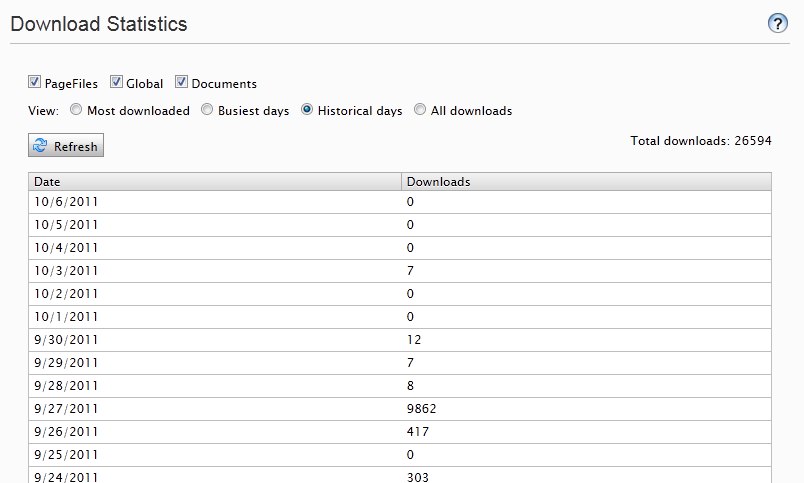
- Historical days – list of all days from today to the day of the first recorded download, with their count (by date descending, also includes zero-count days)
- All downloads – simple dump of all downloads with their date and time (date descending)… be careful, this could be a big list!
To make things easier to use, I write out checkboxes for all the VPPs listed in the system and only display stats for the ones selected. That way, you can choose what you see stats for, e.g. just Global, or Global, Documents and PageFiles. It also works with custom VPPs. For example, I use it with my Dropbox VPP. Here is a screenshot of a site using it (showing historical days, in this instance).
If you’d like to try this out, I have made my code available. The code is not supported and supplied as-is. If you want to try it out, there are a couple of steps you need to do:
- Install Microsoft Log Parser 2.2
- Copy the files from the ZIP file into your website
- In your project, add a reference to the EPiServer.UI and logparserInterOp assemblies in your bin folder
- Compile your project
- Give your IIS identity read access to the IIS log files for your site
- Give your IIS identity Local Launch and Local Activation permissions to the ‘MSUtil’ package in DCOM Config
And that’s it! You should be able to fire up Admin mode and find your ‘Download Statistics’ in your admin tools.
A couple of technical points:
- I suggest for security that you secure the Plugins/Admin folder using a location statement in the web.config, although it will work fine without it
- VS 2010 type library creation has a bug that may prevent you creating the Interop through Visual Studio, so I manually created the logparserInterOp assembly for you
- The code assumes a location of your log files as C:\inetpub\logs\LogFiles. If you have your log files somewhere else, just tweak the code
- DCOM Config can be found by starting dcomcnfg and navigating to Component Services –> Computers –> My Computer –> DCOM Config. Right-click and choose Properties –> Security (tab) –> Launch and Activation Permissions (Edit… button)
- You can either grant permissions to the whole IIS logs folder or just your site logs folder – to get the site ID look in Internet Information Services in the ‘Sites’ view for the Site ID
Possible improvements include
- Charting (would be fairly easy to do with the ASP.Net charting controls)
- Specifying date ranges – again quite easy if you derive the log file names and specify them in the LogParser query string
- Configurable log file location
Now, finally, a word of warning. Chomping through a mass of huge log files IS an intensive task, and if you do this on a live server that has been around for some time with some hefty traffic, it will churn your CPU heavily. Use with caution!

Comments