

Vulcan gets Commerce Manager search provider
I was contacted by one of our partners creating an Episerver Commerce site and using Vulcan, the lightweight Elasticsearch client for Episerver. They had come across an interesting bug where some features in the Commerce Manager UI were throwing error 500’s… specifically, any time they were looking for a product (catalog search, add line item etc.)
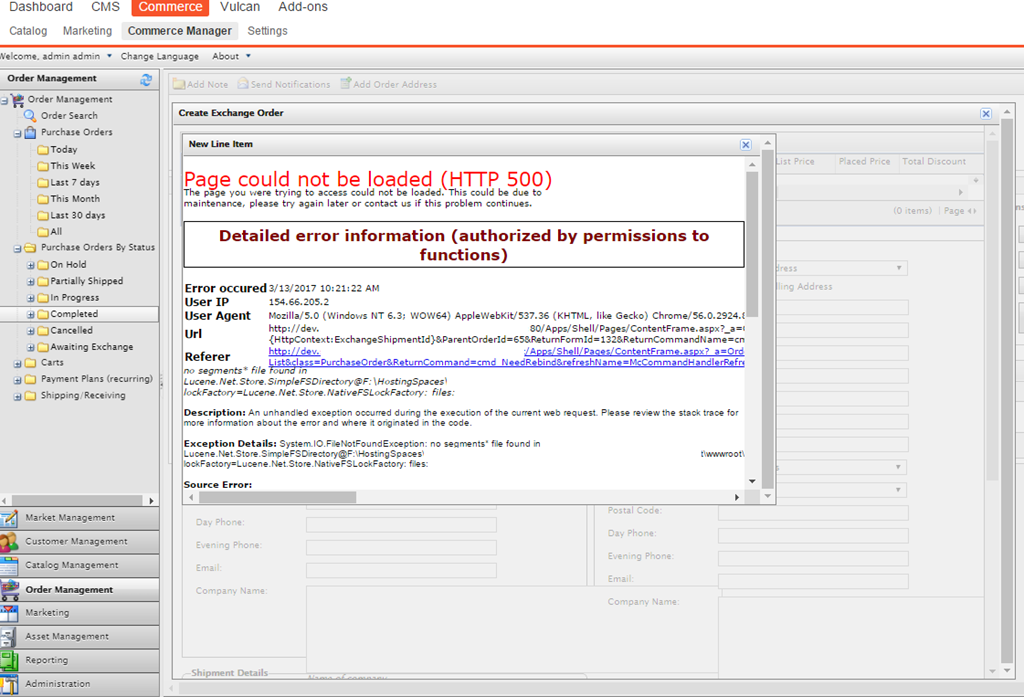
Looking at it, the errors were being thrown by the Lucene search provider. Unsurprising, really, as the Lucene search provider was the one configured, but the Lucene index wasn’t even being built – the site was totally running on Vulcan. This causes a bit of an issue because the Commerce Manager doesn’t use the shared search provider model yet, it still runs a legacy system. The best way to fix this was to create a lightweight Commerce Manager compatible search provider for Vulcan. This did require a breaking change to the Vulcan Core. Unfortunately, the Vulcan Core was dependent on the CMS UI packages for the shared search provider capability, and these in turn break the Commerce Manager when they are pulled in during build (at runtime, you get nasty errors about Episerver Shell). So we had to break that dependency and created a new package that contains the core search providers called TcbInternetSolutions.Vulcan.Core.SearchProviders. This frees up the main Core package to be able to be used anywhere.
What you will now find in the Episerver Nuget feed are six packages for Vulcan, as below:
- TcbInternetSolutions.Vulcan.Core (the core package, can be deployed to any Episerver CMS front-end / commerce front-end / commerce manager site)
- TcbInternetSolutions.Vulcan.Commerce (should only be deployed to an Episerver commerce front-end site)
- TcbInternetSolutions.Vulcan.UI (should only be deployed to an Episerver CMS front-end / commerce front-end site)
- TcbInternetSolutions.Vulcan.AttachmentIndexer (should only be deployed to an Episerver CMS front-end / commerce front-end site)
- TcbInternetSolutions.Vulcan.Core.SearchProviders (should only be deployed to an Episerver CMS front-end / commerce front-end site)
- TcbInternetSolutions.Vulcan.Commerce.SearchProviders (can be deployed to an Episerver commerce front-end site, but really intended only for a commerce manager site)
If you’re running Vulcan already, you’ll probably just want to update the core and commerce packages and add the TcbInternetSolutions.Vulcan.Core.SearchProviders nuget package to your project. Then you’re back as you were before. If you’re working with commerce, you can also add the TcbInternetSolutions.Vulcan.Commerce.SearchProviders nuget package to your commerce manager (note, this will now pull in the core package to your commerce manager too). If you do this, you’ll also need to change your Commerce Manager search configuration to use Vulcan and update your web.config with the same Vulcan configuration you used in the CMS project. The first part of this configuration you will find in the file Configs/Mediachase.Search.config inside your commerce manager project. Simply add the new Vulcan search engine to the configuration and make it the default. Here is an example of that file:
<?xml version="1.0" encoding="utf-8"?>
<Mediachase.Search>
  <SearchProviders defaultProvider="VulcanSearchProvider">
    <providers>
      <add name="SolrSearchProvider" type="Mediachase.Search.Providers.Solr.SolrSearchProvider, Mediachase.Search.SolrSearchProvider" queryBuilderType="Mediachase.Search.Providers.Solr.SolrSearchQueryBuilder, Mediachase.Search.SolrSearchProvider" url="http://localhost:8080/solr" shareCores="true" />
      <add name="Solr35SearchProvider" type="Mediachase.Search.Providers.Solr35.SolrSearchProvider, Mediachase.Search.Solr35SearchProvider" queryBuilderType="Mediachase.Search.Providers.Solr35.SolrSearchQueryBuilder, Mediachase.Search.Solr35SearchProvider" url="http://localhost:8080/solr" shareCores="true" facetLocalizedFieldValuesOnly="true" commitWithin="10000" maximumBatchSize="50" />
      <add name="LuceneSearchProvider" type="Mediachase.Search.Providers.Lucene.LuceneSearchProvider, Mediachase.Search.LuceneSearchProvider" queryBuilderType="Mediachase.Search.Providers.Lucene.LuceneSearchQueryBuilder, Mediachase.Search.LuceneSearchProvider" storage="[appDataPath]\Search\ECApplication\" simulateFaceting="true" />
      <add name="FindSearchProvider" type="EPiServer.Commerce.FindSearchProvider.FindSearchProvider, EPiServer.Commerce.FindSearchProvider" serviceUrl="http://localhost:9200" defaultIndex="myindex" />
      <add name="VulcanSearchProvider" type="TcbInternetSolutions.Vulcan.Commerce.SearchProviders.VulcanSearchProvider, TcbInternetSolutions.Vulcan.Commerce.SearchProviders" />
    </providers>
  </SearchProviders>
  <Indexers basePath="[appDataPath]\Search\ECApplication\">
    <add name="catalog" type="Mediachase.Search.Extensions.Indexers.CatalogIndexBuilder, Mediachase.Search.Extensions" />
  </Indexers>
</Mediachase.Search>
As for the web.config, you just need to add the Vulcan settings to your appSettings. Here is an example snippet:
…
  <appSettings>
    <add key="aspnet:UseTaskFriendlySynchronizationContext" value="true" />
    <add key="CommerceManagerLink" value="http://localhost:62549/" />
    <add key="episerver:SkipCatalogContentModelCheck" value="true" />
    <add key="ShellFirstPageUrl" value="~/Apps/Shell/Pages/ContentFrame.aspx" />
    <add key="AppsDir" value="~/Apps" />
    <add key="ValidationSettings:UnobtrusiveValidationMode" value="None" />
    <add key="owin:AutomaticAppStartup" value="false" />
    <add key="VulcanUrl" value="http://localhost:9200" />
    <add key="VulcanIndex" value="mycommercesite" />
  </appSettings>
…
Once you’re all done, you’ll see that you can now search for products/variants etc. throughout the commerce manager, and it will use your Vulcan index. The search is still somewhat limited – it’s simply to get this functionality working but we’re not intending to give commerce manager a lot of Vulcan love. If you have enhancements you’d like for it, the source is on GitHub!
DISCLAIMER: This project is in no way connected with or endorsed by Episerver. It is being created under the auspices of a South African company and is entirely separate to what I do as an Episerver employee.

Comments