

Vulcan gets Parallel Indexing and Always-On features
As I move around in Episerver circles, I get many questions and requests about Vulcan, the lightweight ElasticSearch client for Episerver. Two of the most asked-for features are the ability to do Parallel Indexing and have an Always-On feature so that the search is still available even during a reindex.
I’m glad to announce that we currently have both those features in test! You can grab the nuget packages already from appveyor and drop them into a local package source if you just can’t wait to test, or you can wait until they drop into the main Episerver nuget feed. Just remember that they are pre-release at the moment so you’ll have to check the ‘Include prerelease’ checkbox in Nuget Package Manager. So what’s new in Vulcan, and how do you use them?
Firstly, parallel indexing. Brad McDavid did some of the ground work on this one already, and all that remained was to finish off the implementation. It’s off by default, but you can turn it on by simply enabling it in your IVulcanIndexContentJobSettings implementation. Here is an example:
[sourcecode language='csharp' ]
    [ModuleDependency(typeof(ServiceContainerInitialization))]
    public class VulcanParallel : IConfigurableModule
    {
        public void Initialize(InitializationEngine context)
        {
        }

        public void Uninitialize(InitializationEngine context)
        {
        }

        public void ConfigureContainer(ServiceConfigurationContext context)
        {
            context.Services.AddSingleton <IVulcanIndexContentJobSettings, ParallelIndexing>();
        }
    }

    public class ParallelIndexing : IVulcanIndexContentJobSettings
    {
        public bool EnableParallelIndexers => true;

        public bool EnableParallelContent => true;

        public bool EnableAlwaysUp => true;

        public int ParallelDegree => 4;
    }
[/sourcecode]
Once you’ve switched the parallel indexing on, the ‘ParallelDegree’ number can be used to choose just how parallel you go. The higher the number, the more threads it will spin off. Set it to –1 and it will grab all the capacity it can. If you’re running a nice multi-core, maybe you can go large! The default is 4, which isn’t very parallel at all, but the problem with going too parallel too quickly is that you’ll swallow the server up. This might not be such an issue if you’re running the indexing scheduled job on a back-end server, but if this is one of your public facing servers then you don’t really want to kill it with an indexing job. Try changing the number until you find a balance that works for you.
The second feature is Always-On. This means that, quite simply, your index is still available during a reindex. This is achieved using ElasticSearch aliases. By default it’s off, but simply turn it on (also in the example above) and you’re good to go! Just be aware of a couple of side effects of this – firstly, while the indexing is happening there will be an additional set of indexes on your ElasticSearch server. You can see this in the example pic below (you’ll also notice the aliases that are now used by Vulcan):
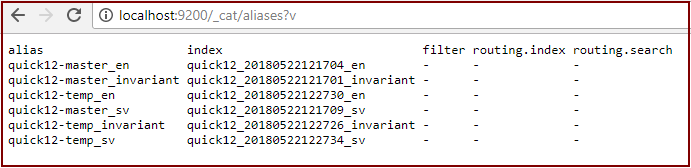
They are cleared down when the job successfully completes, but make sure your ElasticSearch has capacity for the extra indexes. Secondly, we’ve had to change the naming conventions of the indexes that Vulcan creates. You may well want to clear the old indexes up. If you have access to your ElasticSearch server you can do this yourself, but there’s a new scheduled job called ‘Vulcan Index Clear’ that wipes ALL the Vulcan indexes for your site. Just remember to reindex your Vulcan content once you’ve wiped everything out!

Another nice thing about this new Always-On feature is that you can even use it to ‘segment’ your Vulcan data, if you want to. When you call GetClient on the IVulcanHandler, it now takes an ‘alias’ parameter. It’s default null, so your code will work as-is, but if you put something in there then it will get stored in a separate Vulcan index with it’s own alias. Just remember that anything you put in there is your job to update, reindex and clear down as the default Vulcan index job won’t know about things you put in your own aliased Vulcan clients.
So there’s two of the most asked-for features ready to go. As always, please do test it and give us feedback – good and bad – and why not think about contributing? After all, Vulcan is Open Source!
DISCLAIMER: This project is in no way connected with or endorsed by Episerver. It is being created under the auspices of a South African company and is entirely separate to what I do as an Episerver employee.

Comments