

How to set up an empty CMS site with MVC support
I got a question regarding the MVC support in the EPiServer 7 Preview. How would you go about setting up an empty CMS site with MVC support?
If you install a site with the Alloy Tech templates, there is a zip module that adds MVC samples to the site. But what if you want to build MVC templates, but not install the Alloy Tech templates? I.e. have an empty site but with MVC tooling support. Here is what I did in order to get an empty MVC 4 project working with the EPiServer 7 Preview.
1. Install an empty CMS site using EPiServer Deployment Center.
2. Create a new ASP.NET MCP 4 Web Application, and choose the empty template.
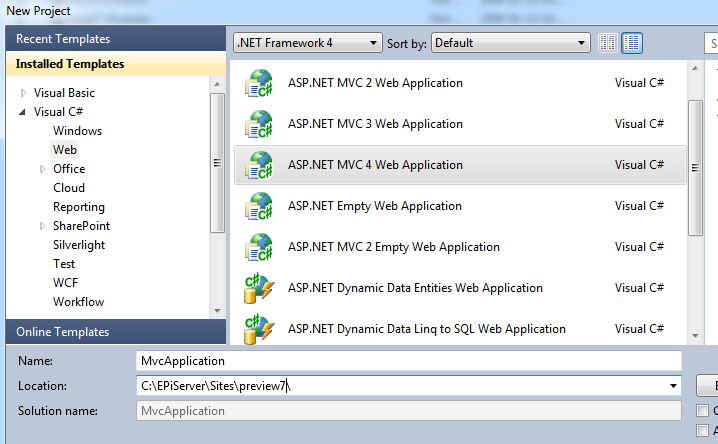
3. Copy the content of the folder containing the MVC project, i.e. the folder where the .csproj file resides. Skip the web.config files, global.ascx and global.ascx.cs. Paste the content in the site folder installed in step 1. I.e. the folder containing all the site files.
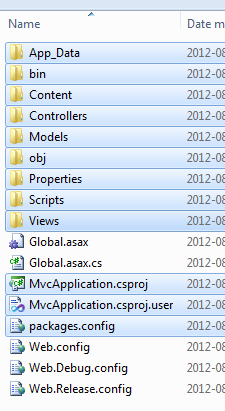
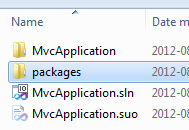
4. In the parent folder of the MVC files there is a folder called packages. Copy that to the parent folder of the site files. This is needed in order to keep the references in the .csproj file intact.
5. Open the .csproj file and you’ll notice that the files global.ascx.cs, web.debug.config and web.release.config are missing. Just delete those references from the project.
6. Add any needed references to EPiServer assemblies. For a basic MVC template you will at least need EPiServer.dll, EPiServer.Data and EPiServer.BaseLibrary.
The project should now compile and now you can add your page types and templates. After doing so you will want to go to the UI and create a page. But since this an empty site it might not be obvious how to create the first page. Here is a short guide on how you could accomplish that.
1. Set pageStartId = 1 in episerver.config. The root page of the site is now your start page.
2. Go to edit, which can be found at http://{mysite}/{uipath}/modules/cms/home.
3. Create a new page under the root page. This will be your new start page.
4. Set pageStartId = 4(the id of the new page) in episerver.config.
You should now have a fully armed and operational CMS site.

Comments