
Handling License.config with automated deployment
I am a big fan of automated deployment tools, and our tool of choice is Octopus Deploy. It makes continuous deployment of new code a breeze and has lots of configuration options to support different scenarios. One challenge, though, has been handling of the License.config file in EPiServer. As you know, we want a unique developer license for each developer, and then another license when deploying to common environments such as QA and PRODUCTION.
Previously, we have had awkward solutions such as uploading the external license file to folder on the Octopus server itself and then having a PowerShell script to copy that file into the solution as it was deployed. This has many disadvantages, for example requiring remote access to the Octopus Server, which I do not have in my current project.
Consequently, we had to come up with a better solution, and after some hard thinking we now have a nice setup that others may hopefully find useful. Here are the steps we have taken:
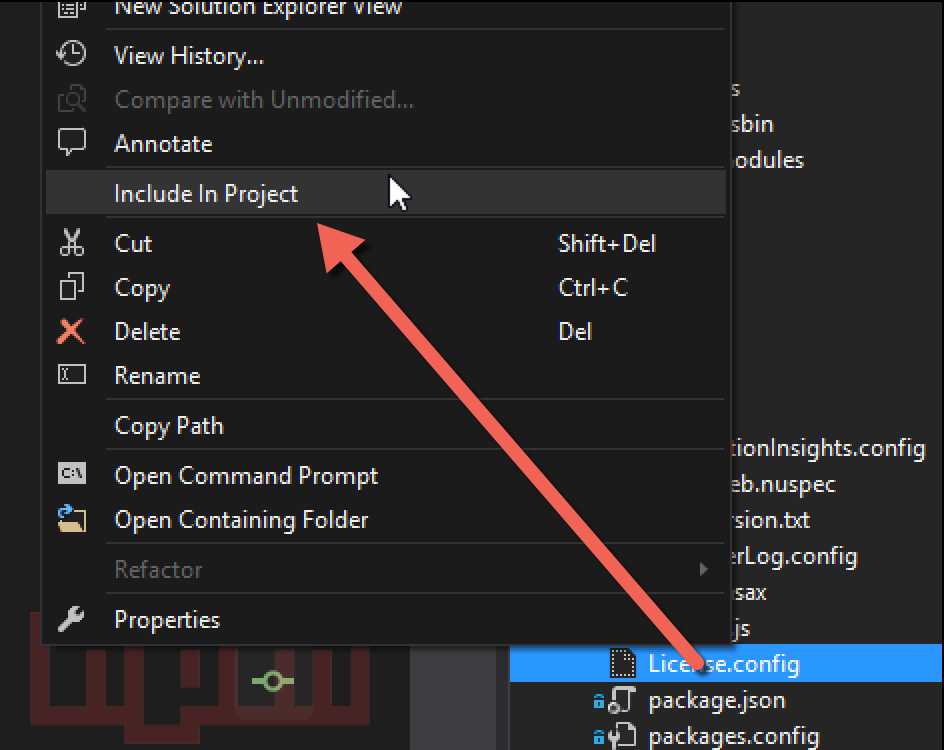
1. Include License.config in your .CSPROJ file – to make sure it is included in the deployment package
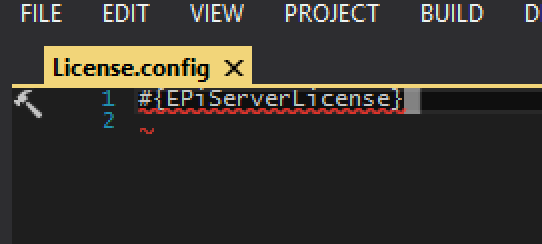
2. Set the contents of License.config to reference an Octopus Deploy variable (that we will define later)
3. Check in your .CSPROJ and your License.config to your version control system (GitHub in our case)
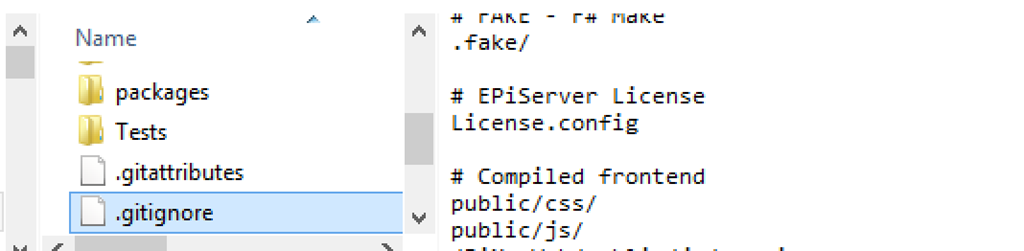
4. Exclude License.config from version control – this is the Git way to do it. After this, you install your personal developer license on your machine.
5. Now, move over to Octopus Deploy and add the deployment variable #EPiServerLicense. Copy the contents of the License file provided by EPiServer into the variable value.

NOTE! If you have non-ASCII letters in your license file, you will need to including …encoding=”iso-8859-1”… in the XML header, as you can see we have done in the screenshot!
6. Finally, in the “Deploy packages” process stage in Octopus Deploy, you activate the feature “Substitue variables in files” and enter “License.config” in the text box.
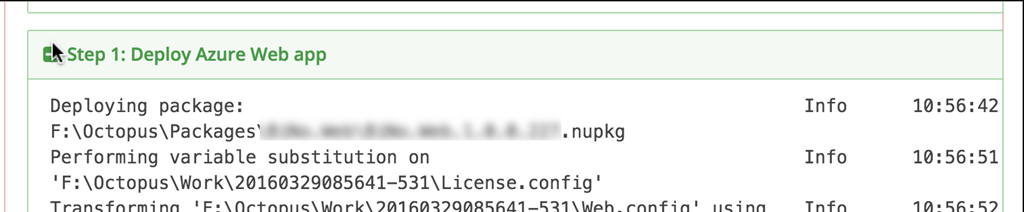
7. You are now ready to deploy. After deployment is done, you can verify that the variable substition worked by checking the Octopus log.

Comments